
Intended audience: ALL USERS
AO Easy Answers for Mobile: 1.1
Overview
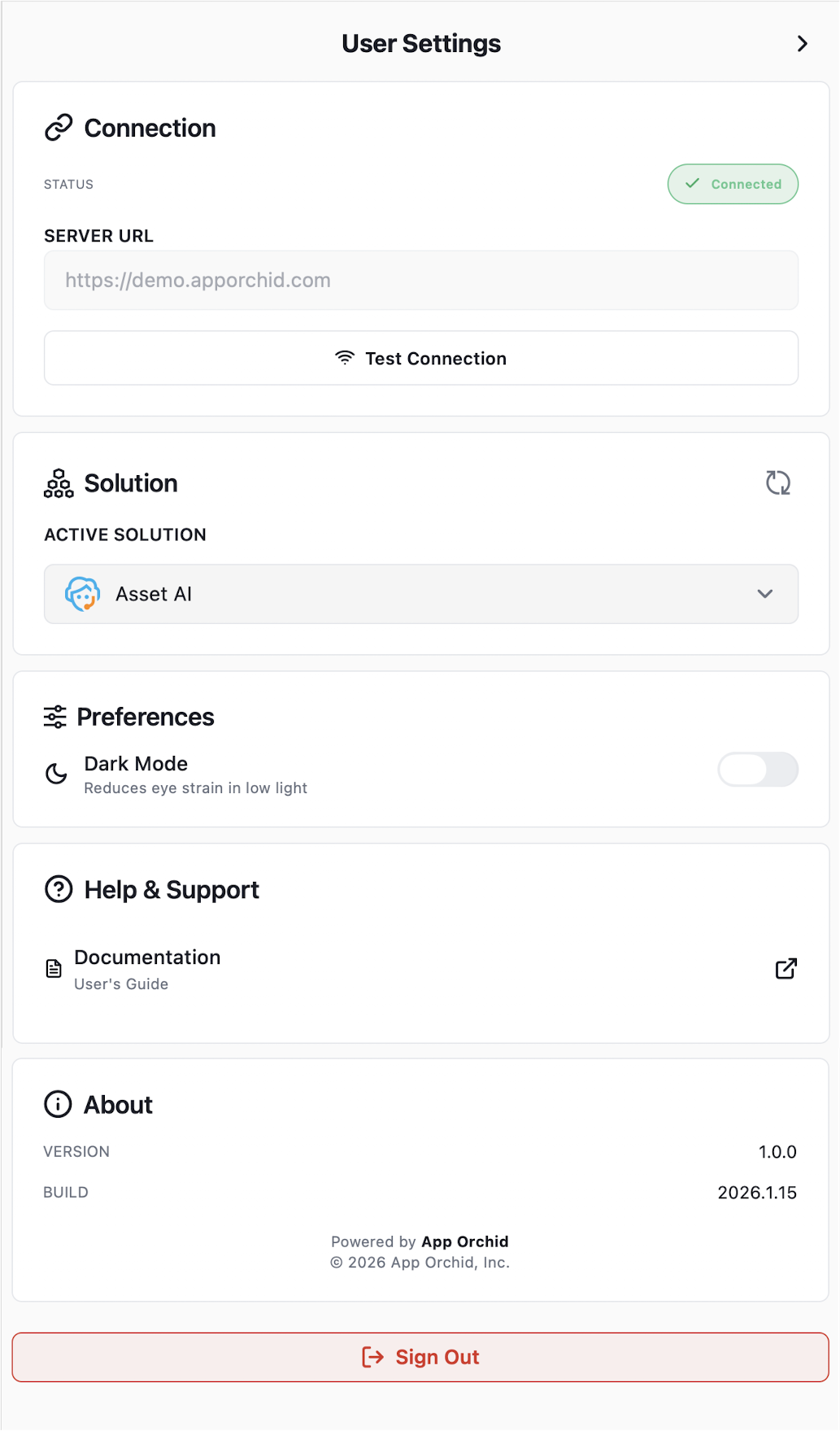
The User Settings screen features configuration options tailored to the current user. Use it to change server connection, solution selection, and other preferences.
Configuring User Settings
The User Settings screen includes the following options:
-
Connection - enter a server connection into the SERVER URL field, and click the Test Connection button to ensure that the server is available, - and finally click the Save button. See Onboarding or Signing In - After Onboarding.
-
Solution - a solution is required before asking questions can begin. Select a solution from the ACTIVE SOLUTION dropdown. See Onboarding.
-
Preferences - this section will generally show various options, including theme selection, notification options, etc…
-
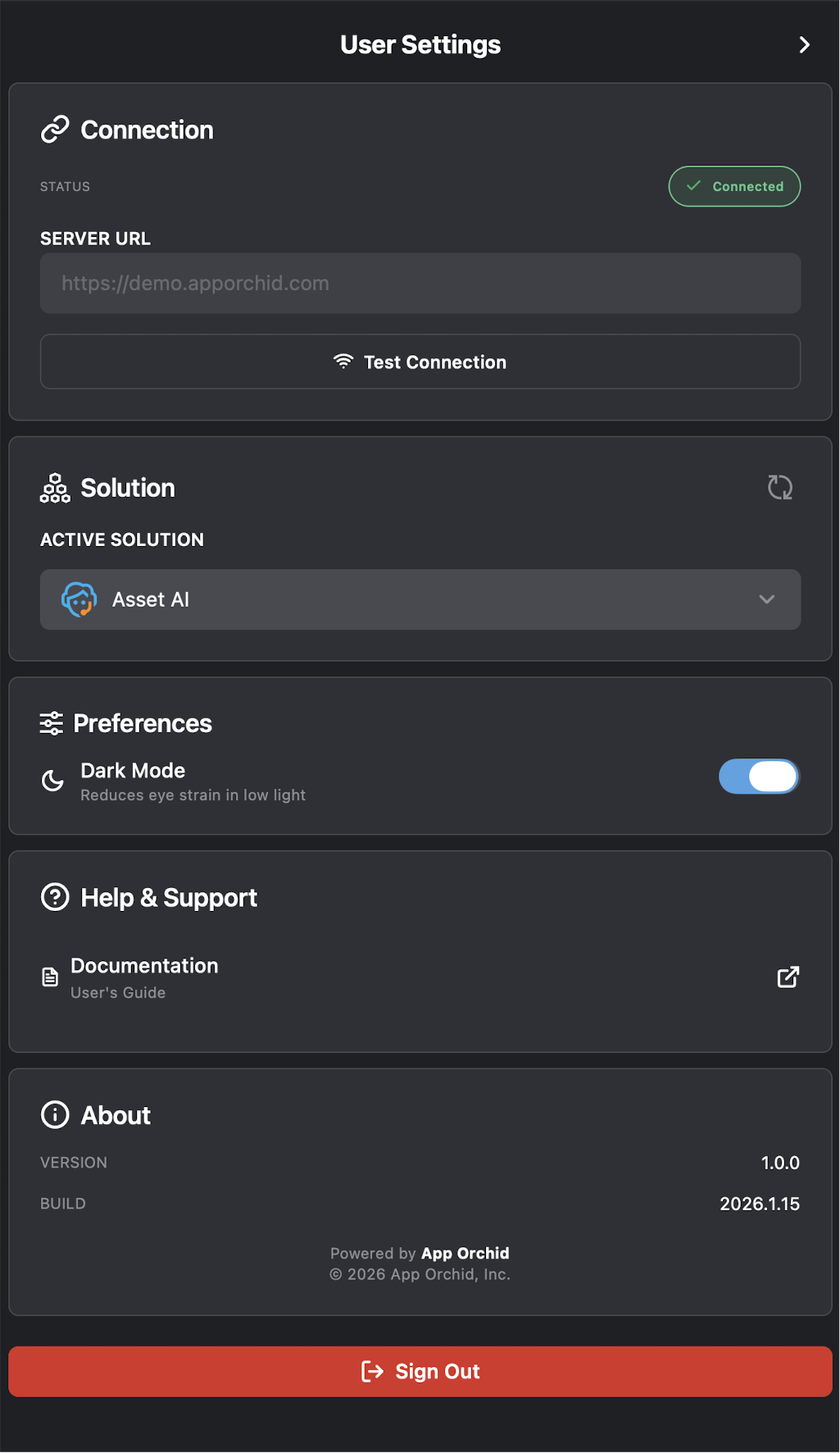
Dark Mode - on/off toggle - if enabled, will show the user interface in dark mode.
-
-
Help and Documentation - click the link to open a separate browser page with documentation about the Easy Answers for Mobile App.
-
About - this section will generally show read-only content, including the version and build number of the Easy Answers for Mobile App.
-
Sign Out - see Signing Out.
User Settings screen in Light Mode
User Settings screen in Dark Mode
Contact App Orchid | Disclaimer