
Intended audience: ALL USERS
AO Easy Answers for Mobile: 2.0
Logs
Logs are recorded entries that capture system events, errors, and notifications generated during app activity. They help users to monitor app behavior, diagnose issues, and track background processes in real time.
-
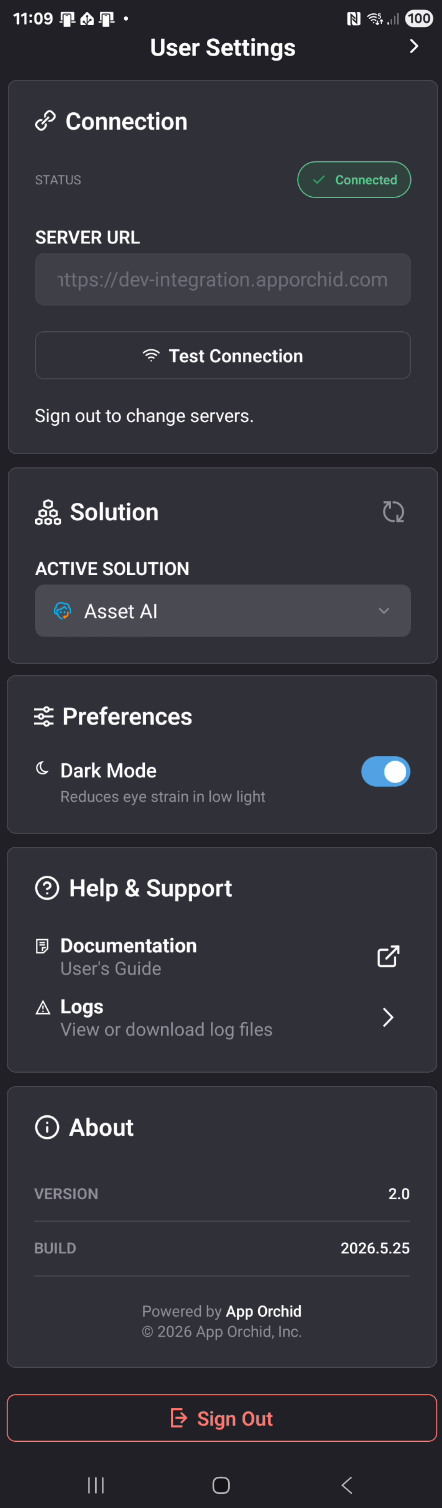
Tap Logs under Help & Support in User Settings to open the Log History screen.
Log Entries
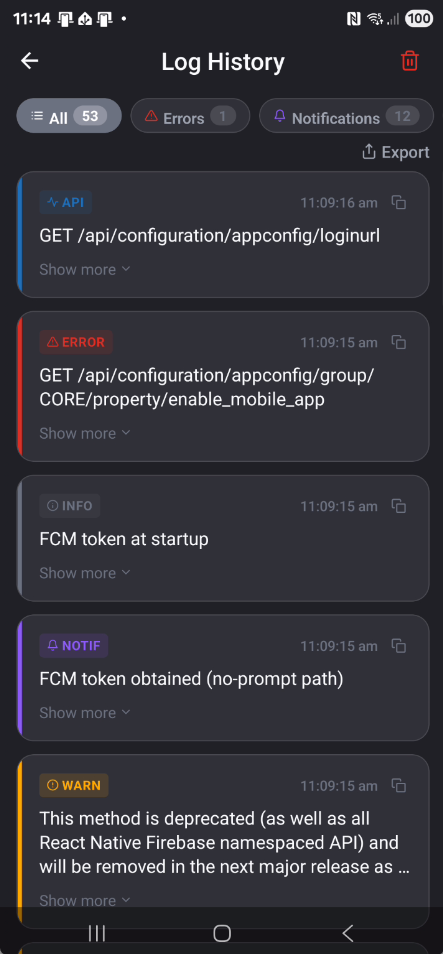
Each log card displays the log type (API, ERROR, INFO, NOTIF, WARN), timestamp, and message.
-
Tap Show more to expand a card or Show less to collapse it.
-
Use the All, Errors, Warnings, Information, Notifications, and API tabs to filter log entries. Each tab shows a count of available entries.
Copy
-
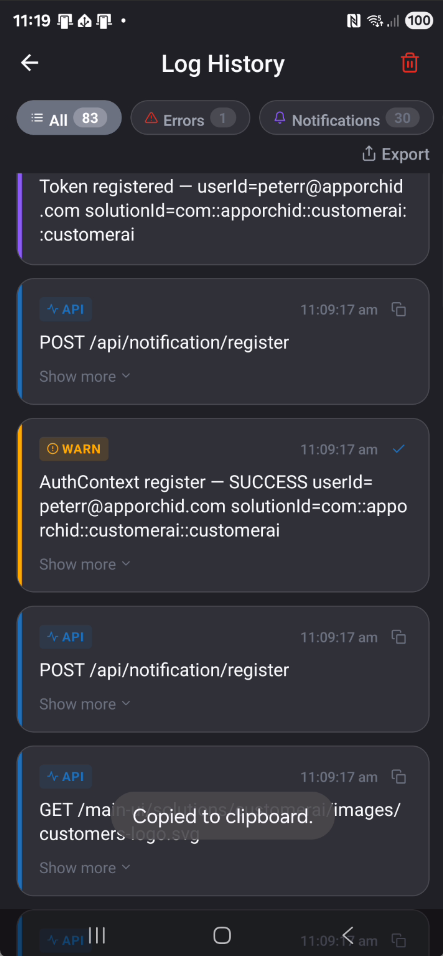
Tap the copy icon on any log card to copy its content to the clipboard.
Export
-
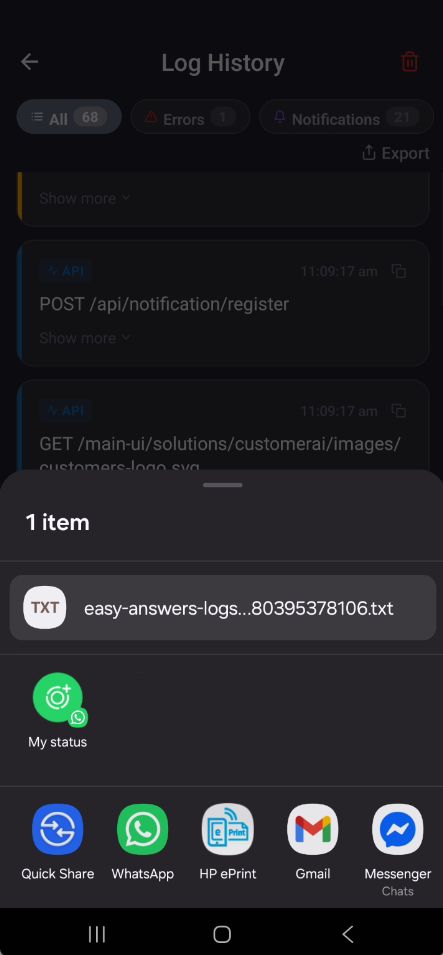
Tap Export to save logs as a .txt file. Once saved, tap OK to dismiss or Also Share to send the file via available apps.
Delete
-
Tap the trash icon

Contact App Orchid | Disclaimer