Intended audience: ALL USERS
AO Easy Answers for Mobile: 1.1
Overview
The Easy Answers for Mobile App has an initial Onboarding workflow to ensure that the App is connected to an AO Platform server, the user is signed in, and that an Easy Answers solution has been selected. This topic describes these Onboarding steps.
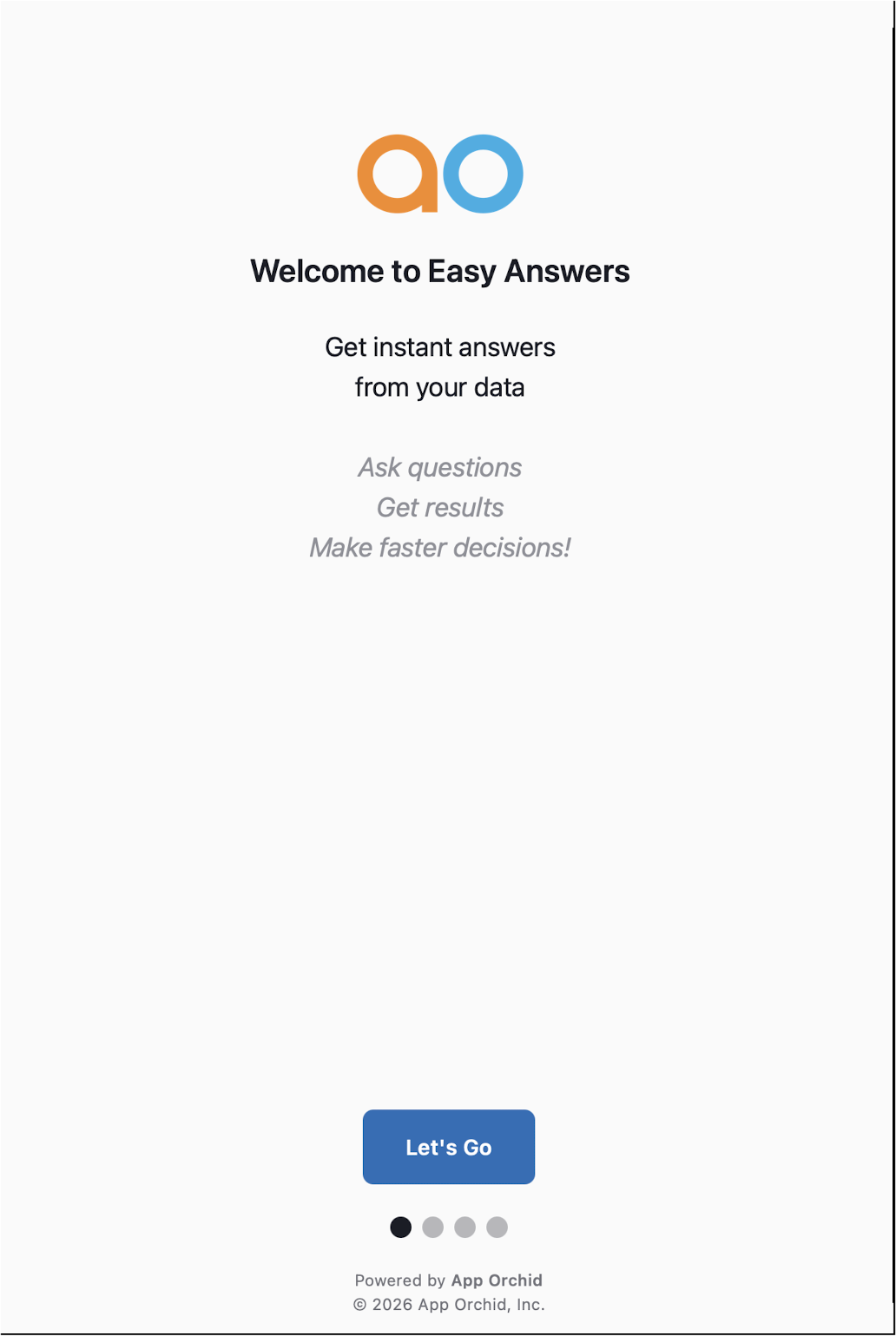
1. Welcome Page
Congrats, your Easy Answers for Mobile App has been installed successfully, and you are now on your way to setting up your basic prerequisites. Click the Let’s Go button.
2. Server Setup
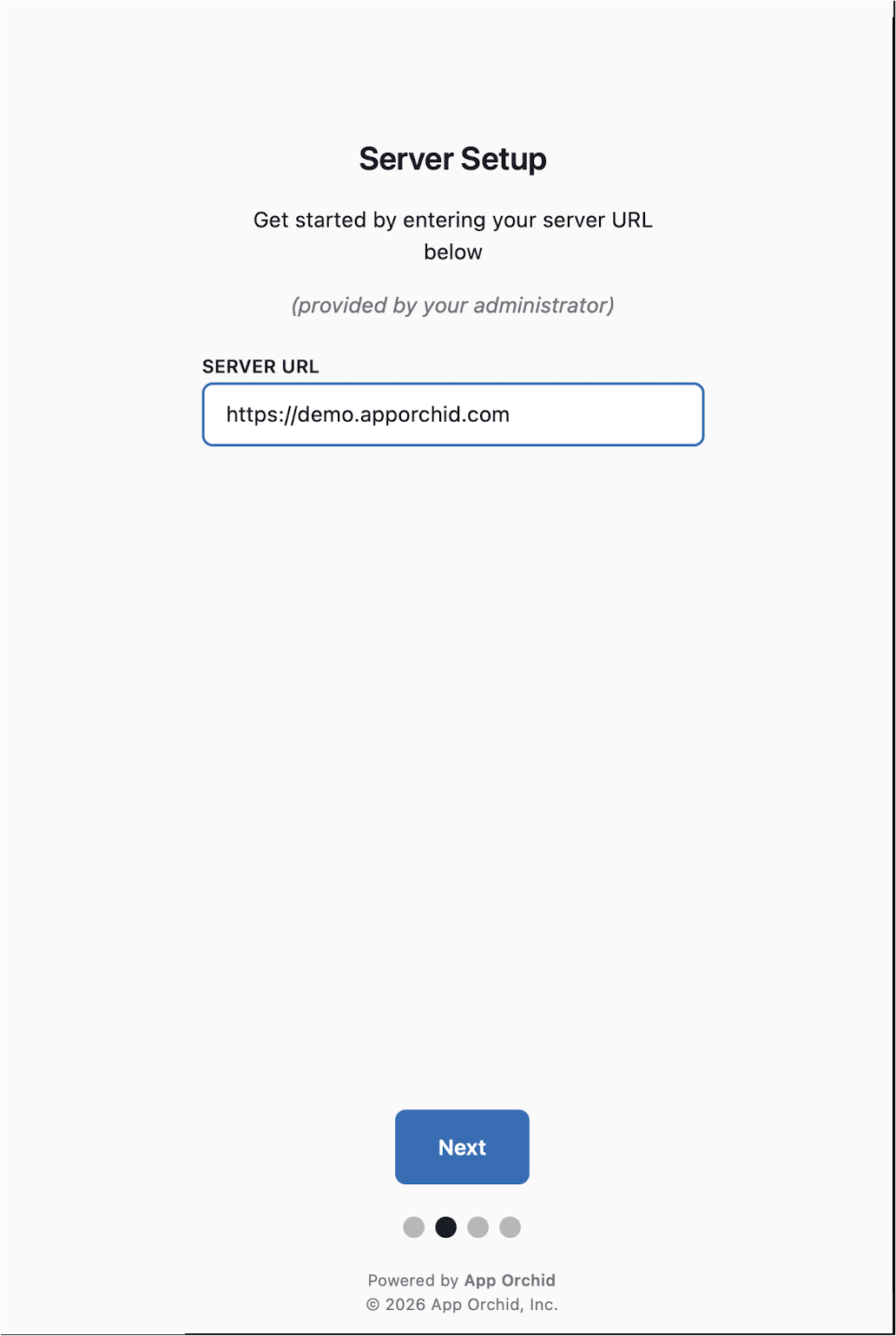
Enter a server connection into the SERVER URL field, and click the Next button. The page will respond with either a Connected or Failed message to indicate if the URL was accepted and is accessible.
The SERVER URL is typically something like: https://demo.apporchid.com, https://companyname.apporchid.com, or https://easyanswers.companyname.com
3. Your Account
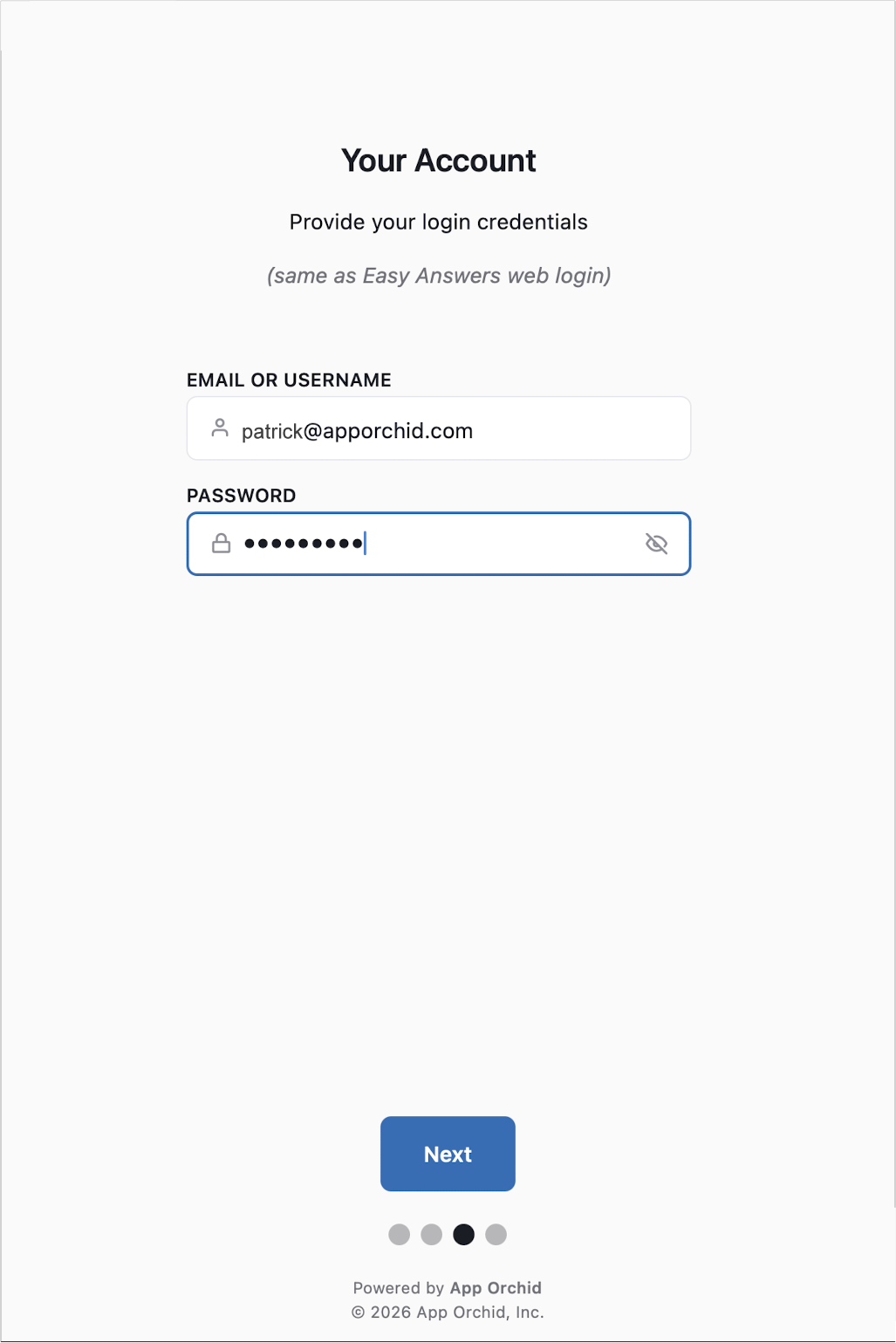
To Sign In to an Easy Answers solution, you will need a username/email address and a password from the solution administrator.
See Installation - Mobile topics to use a “demouser” account.
Enter your assigned username/email address and password and click the Sign In button.
Server Does Not Allow Access from Mobile App
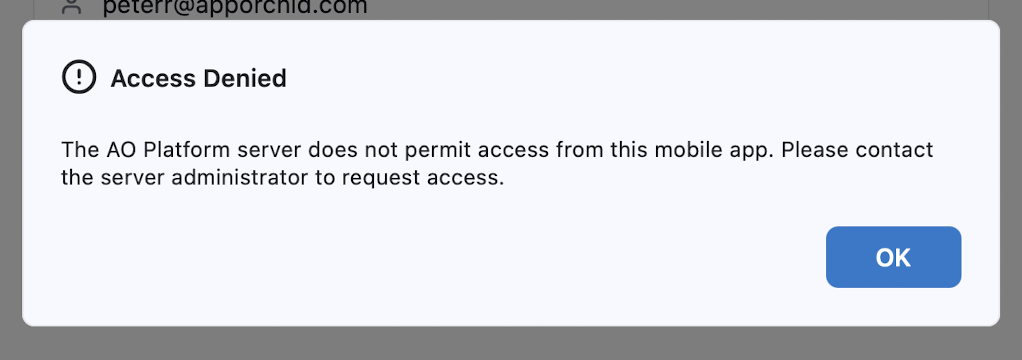
If the AO Platform server does not allow access from a Mobile App, the user will see the following Access Denied message. It’s up to the Administrator of the AO Platform server to provide access permissions at both the server level (for all users) and at the individual solution level.
4. Choose Solution
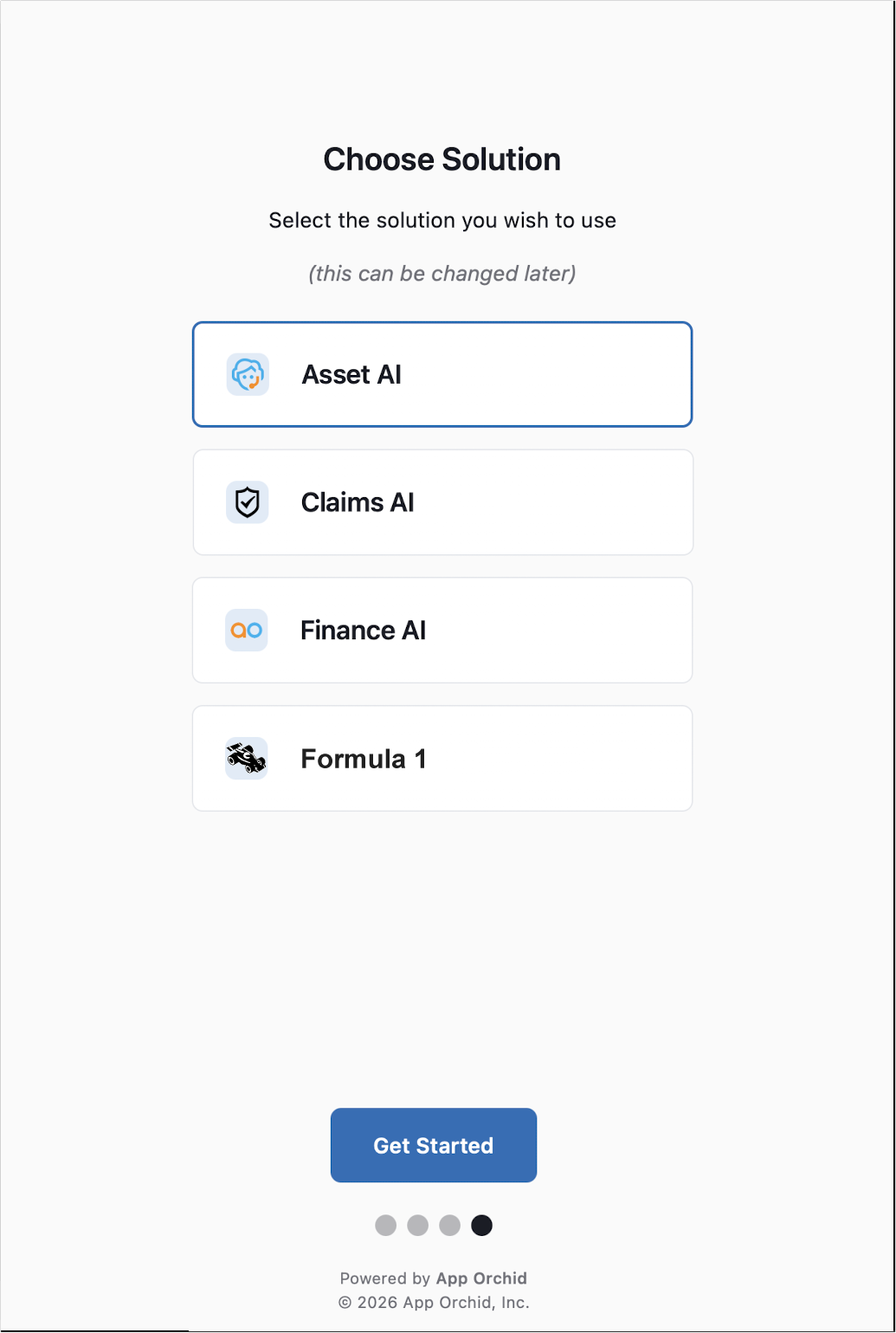
An Easy Answers solution is typically created per organization based on a specific functional area, such as Procurement, Operations, or Sales, - or it can be a solution that is based on multiple functional areas, particular to a given industry or vertical, such as a Utilities company, a Healthcare organization, or a Financial/Insurance institution.
The Choose Solution screen only appears during the Onboarding workflow, as a solution is required before asking questions can begin. Most users will likely only see one solution created for their specific organization. If multiple solutions are available on the server being used, users can access the User Settings screen to select a different solution. See Configuring User Settings.
Select one of the available solutions, then click the Get Started button and the Easy Answers welcome screen will be shown, ready for users starting a conversation with the Agent to get answers about their organization's data.
Contact App Orchid | Disclaimer