
Intended audience: ALL USERS
AO Easy Answers for Mobile: 1.0
Overview
To Sign In to an Easy Answers solution, you will need a username/email address and a password from the solution administrator.
Signing In
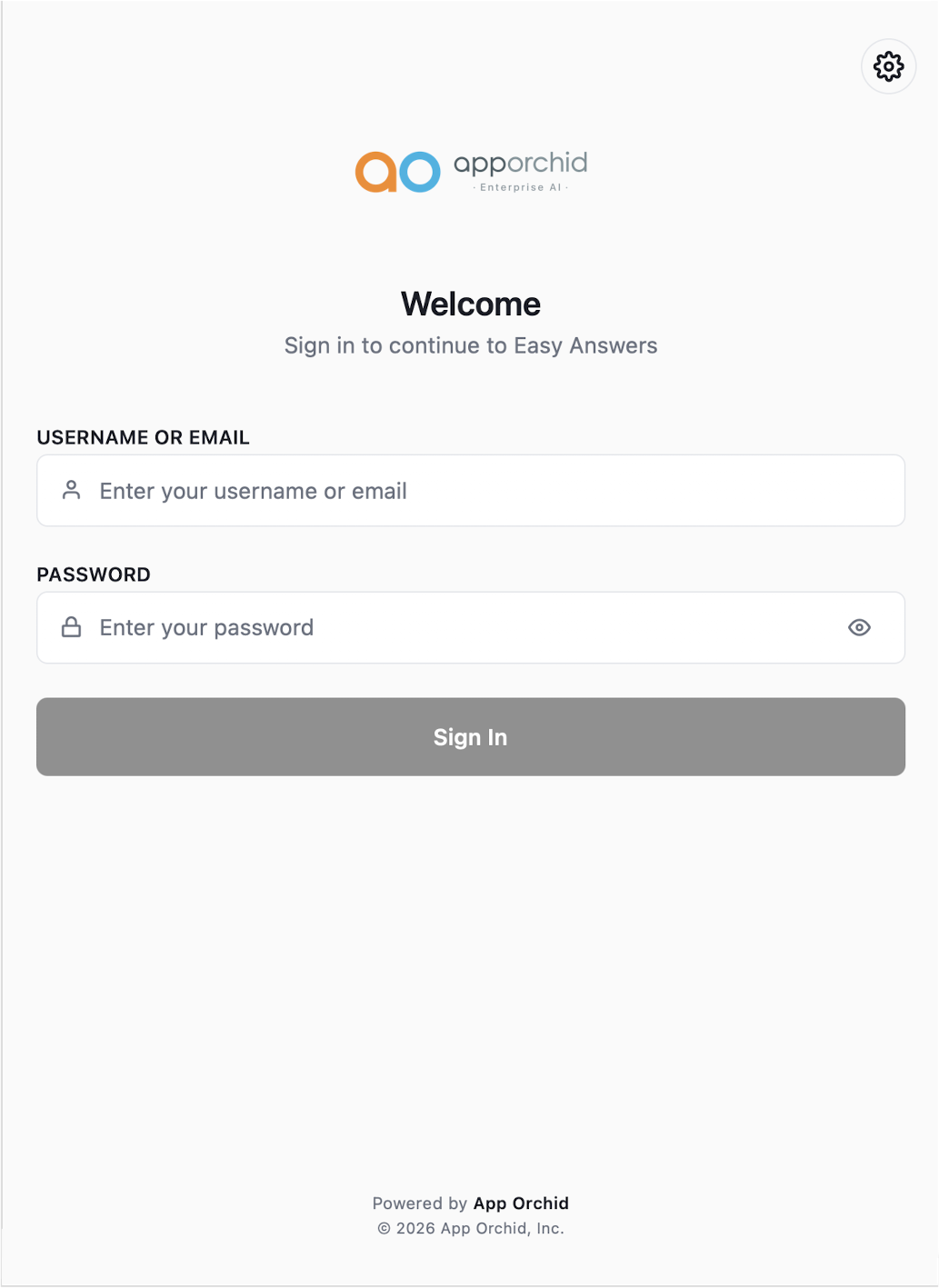
The very first screen that appears when launching the Easy Answers App is the Sign In screen.
Enter your assigned username/email address and password and click the Sign In button.
Make sure that a connection to a server has already been established. See https://apporchid.atlassian.net/wiki/spaces/AOPHC/pages/4265378062 if in doubt.
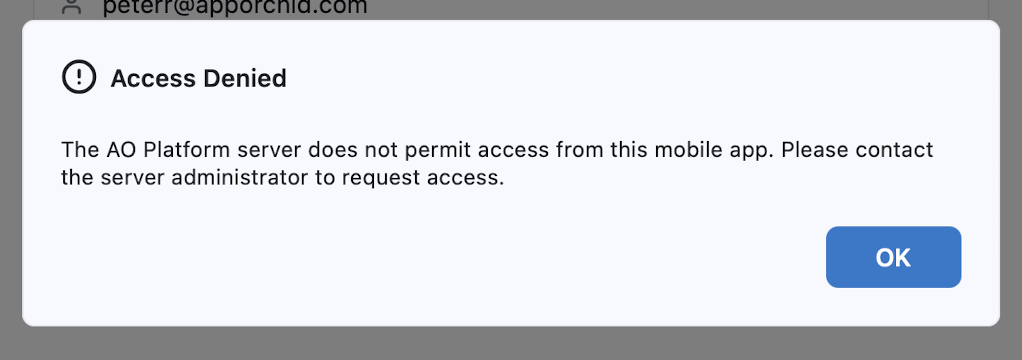
Server Does Not Allow Access from Mobile App
If the AO Platform server does not allow access from a Mobile App, the user will see the following Access Denied message. It’s up to the Administrator of the AO Platform server to provide access permissions both at the server level (all users) and at the individual solution level.
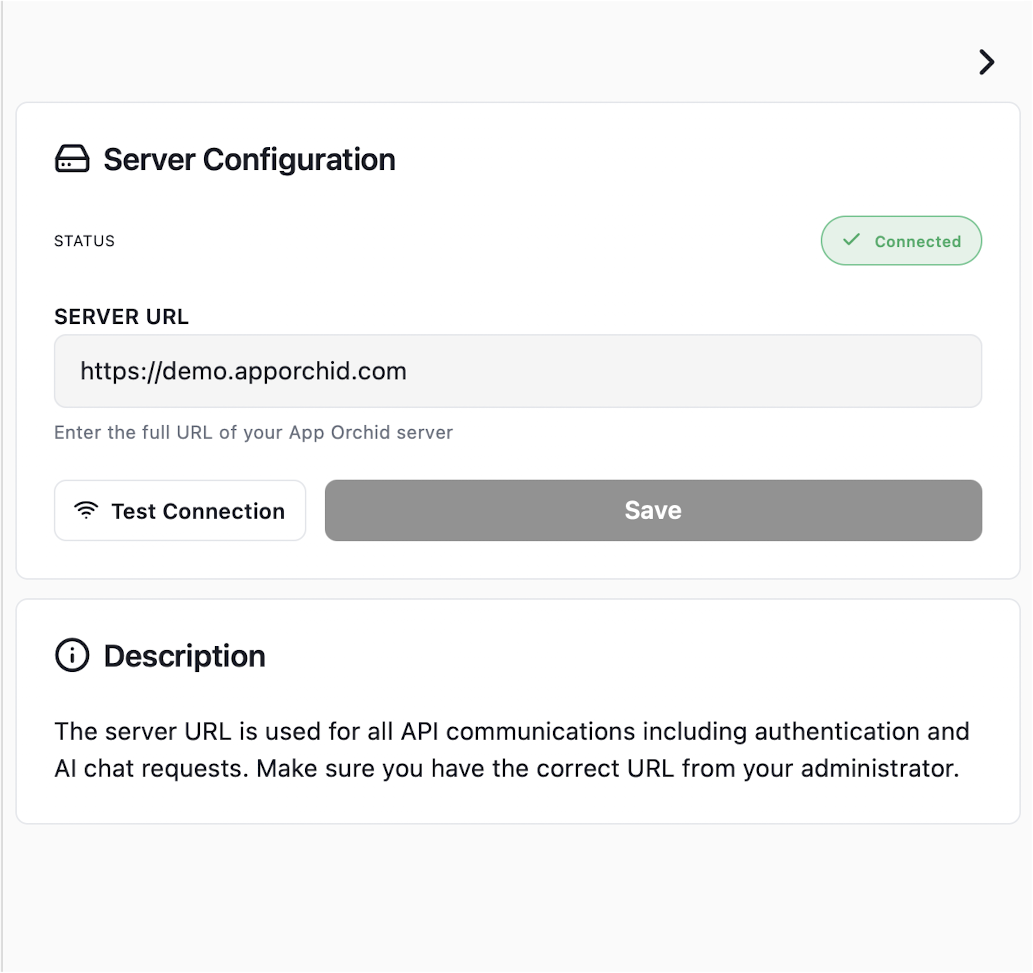
Server Configuration
Should it be necessary to change the AO Platform server after the Onboarding process, the user can select the 
Enter a server connection into the SERVER URL field, and click the Test Connection button to ensure that the server is available, - and finally click the Save button.
The SERVER URL is typically something like: https://demo.apporchid.com, https://companyname.apporchid.com, or https://easyanswers.companyname.com
Now, go back to the Sign In screen using the 
Contact App Orchid | Disclaimer